
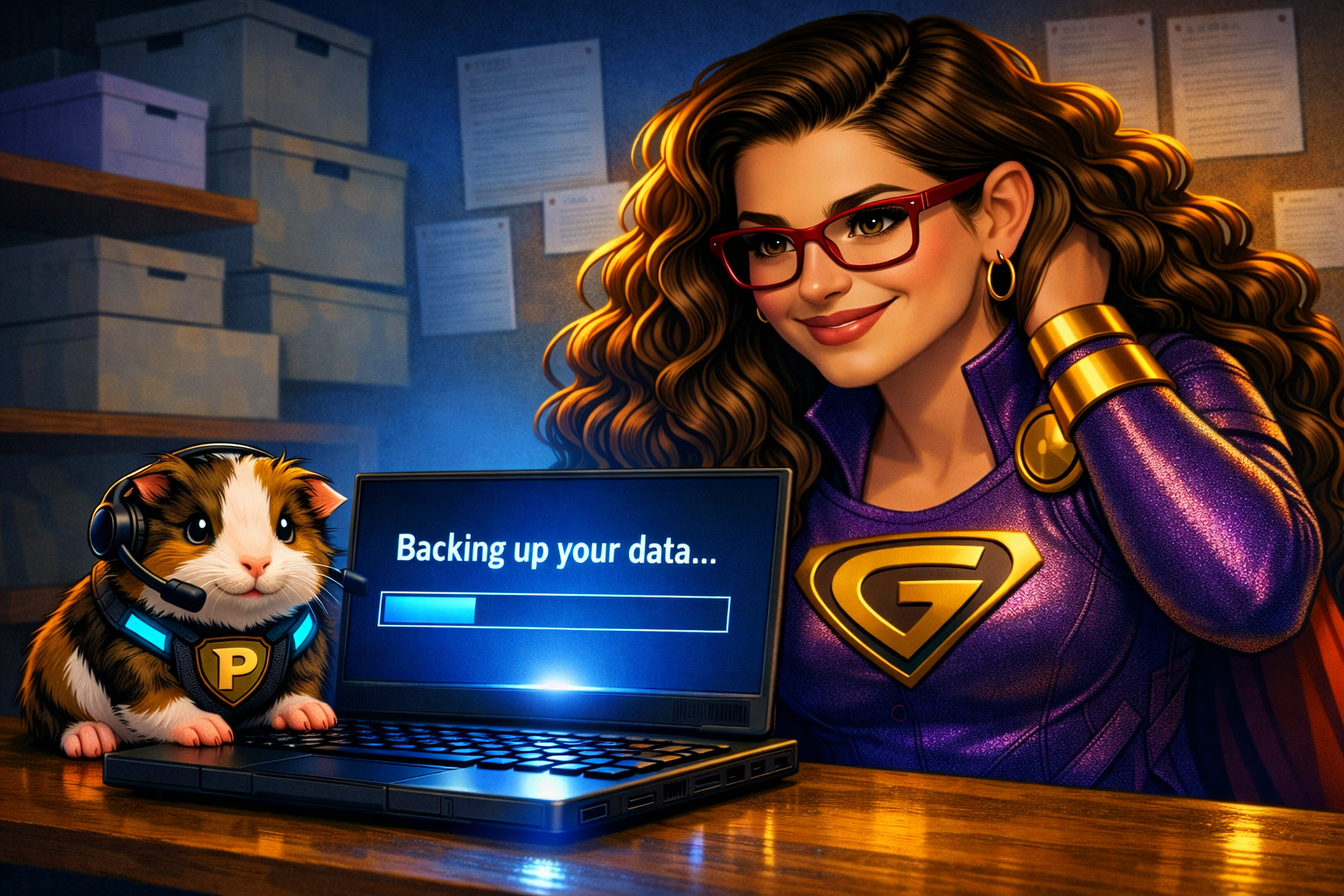
Another day, another tech issue…
Mission Brief
A power outage. A fire. An unexpected explosion.
No, it’s not a movie scene — it’s happening right on your desk.
Your precious computer has gone dark, and with it… your files, your photos, your lifetime of mp3s.
Or has it?
Wait. You have a backup.
What’s actually going on?
A backup is a treasure chest — a safe copy of your digital life. Some backups include your entire operating system. Others just save the files you care about most.
But here’s the important part: Backups don’t magically appear. You have to create them.
If you have one, you’ll know it — because you (or your local tech‑hero) set it up.
The Rescue Plan
What You Need
🗂️ An External Drive
This could be:
- an external hard drive
- a USB thumb drive
- a DVD (sometimes several)
- a network drive on a server
If these terms sound confusing, don’t panic — your local tech‑hero can guide you.
💾 Backup Software
Mac users: Use Time Machine.
Windows users: Use Backup and Restore.
External hard drive users: Many drives include their own backup software that launches automatically.
🖥️ Your Computer (or Device)
This is what you’re backing up.
Phones and tablets can be backed up by connecting them to your computer or by using cloud services.
How to Perform the Backup
- Plug your external drive into a USB port.
(The vertical rectangle on the computer box.) - Wait for the folder or prompt to appear.
Follow the instructions or open your backup software. - For network drives:
Navigate to the drive and copy your files into it. If you’re unsure: Ask your local tech‑hero.
There is zero shame in asking for help — it’s far better than losing everything.
Pixel nods solemnly. “Backing up is like storing your memories in a vault.”
Why is this important?
Every machine, every situation, and every backup method is unique. If I tried to cover every scenario, you’d stop reading and Pixel would fall asleep.
But here’s the truth: You NEED to back up your digital life if you want to save it.
Trust your tech‑heroes. Enlist your teenagers. Google instructions. Do whatever it takes before disaster strikes. When the smoke clears and the machine is replaced, your memories will still be safe.
This is how you save the world—one tech issue at a time.